Guides / Guide 01
How to Build a Free Sales Funnel With systeme.io (Step by Step for Beginners)
Disclosure: Some links on this page are affiliate links. If you buy through them, we may earn a commission at no extra cost to you. Learn more.
You want to collect email addresses from people interested in your work, but you don't want to pay for software, hire a designer, or learn to code. This guide shows you how to build a simple two-page funnel (a signup page and a thank-you page) on systeme.io's free plan.
What is a "sales funnel," in plain English?
A funnel is just a series of pages that guide a visitor toward one action. The simplest version has two steps:
- Opt-in page (also called a squeeze page): a short page with one offer and one email form.
- Thank-you page: confirms the signup and tells the person what happens next.
That's it. You can add a sales page later, once people are on your list.
Cost: $0. The pricing page says "No credit card required" for the free plan.
What the systeme.io free plan includes
According to systeme.io's pricing page (checked November 16, 2026), the free plan includes:
- Up to 2,000 contacts
- 3 sales funnels
- 1 blog, 1 course, and 1 custom domain
- Unlimited email sends
- 1 email campaign and 1 automation rule
One funnel, one email and one automation rule are all this guide needs. Paid plans start at $17/month (monthly billing) if you outgrow these limits. Always check the current pricing before you decide, because plans can change.
Before you start: pick your free offer
People don't hand over their email for nothing. Decide on one small, useful thing you'll give away. Good beginner offers:
- A one-page checklist ("10 things to check before launching your first course")
- A short PDF guide
- A free email mini-course (3–5 emails)
Keep it specific. "A 7-step checklist to plan your first webinar" tells people exactly what they get; "free tips" doesn't. For our own funnel, we chose a one-page launch checklist as a PDF.
1Create your free account
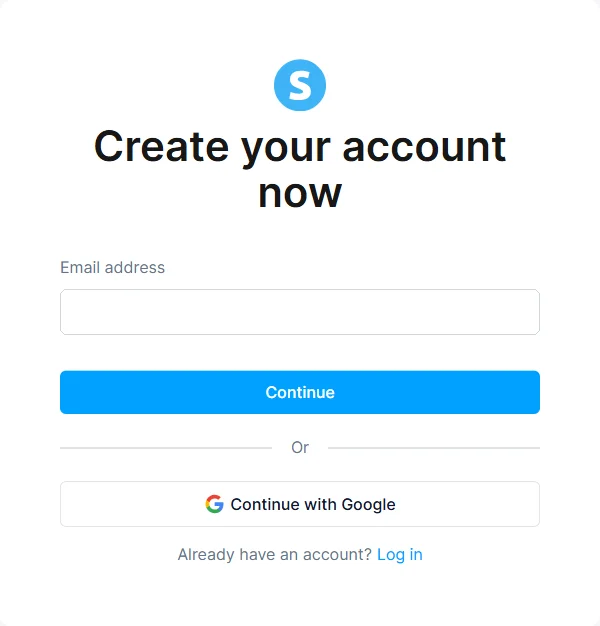
Go to systeme.io (affiliate link) and click Start for free now. On the Create your account now screen, type your Email address and click Continue, or use Continue with Google.
2Create a new funnel
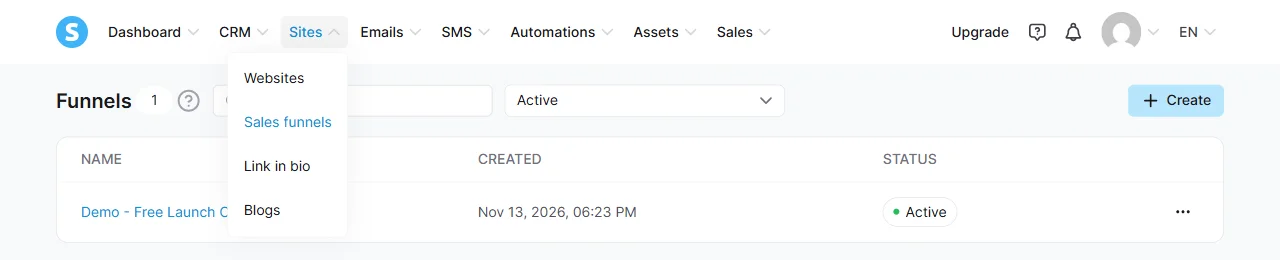
- In the top menu of your dashboard, hover over Sites and click Sales funnels.
- Click + Create in the top-right corner.
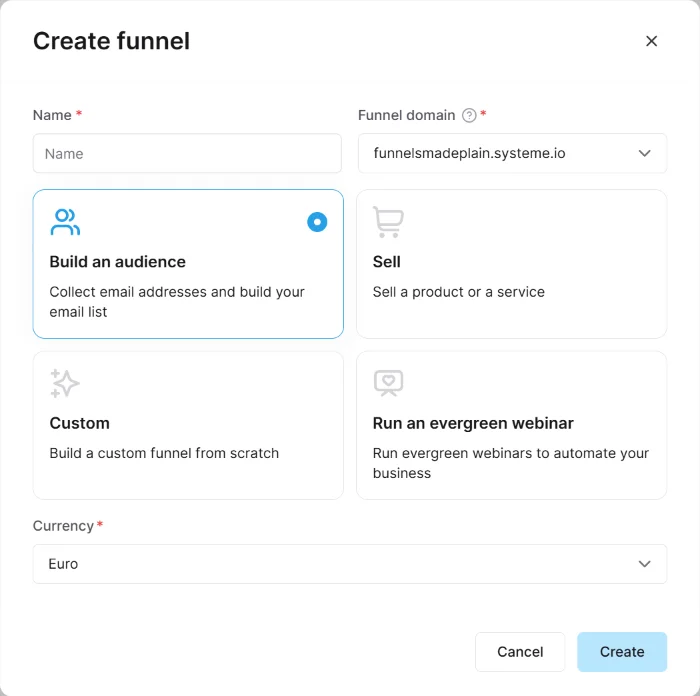
- In the Create funnel window, fill in Name (an internal name for the funnel). Funnel domain is filled in for you with your systeme.io subdomain. Check Currency: ours defaulted to Euro, so switch it to U.S. Dollar if you sell in dollars. The gear icon on the funnel page (Edit funnel) lets you review these settings later.
3Choose the "Build an audience" funnel type
In the same window, systeme.io shows four funnel types: Build an audience, Sell, Custom and Run an evergreen webinar. For collecting emails, choose Build an audience ("Collect email addresses and build your email list"), then click Create. It's the simplest structure: an opt-in page plus a thank-you page.
(The other types are for selling products, building custom pages from scratch, and running evergreen webinars. According to the pricing page, evergreen webinars start on the Webinar plan.)
4Edit your opt-in page
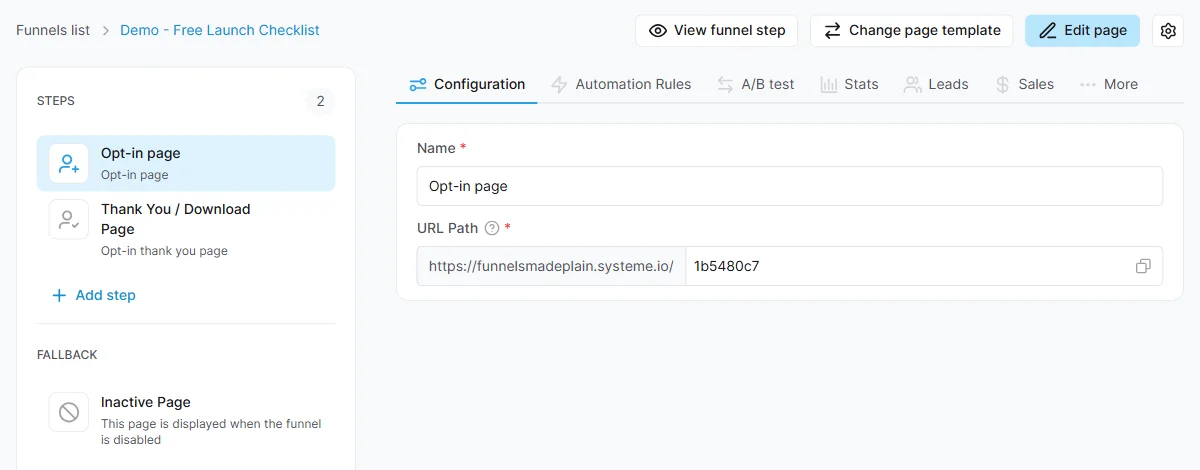
- Click your funnel's name in the funnels list. Your funnel already has two steps: Opt-in page and Thank You / Download Page. The opt-in page is selected first, with a gallery of templates next to it. Pick one and click Use template. The step then shows its Configuration (the page Name and its URL Path on your systeme.io subdomain) and three buttons at the top: View funnel step, Change page template and Edit page.
- Click Edit page. Replace the headline with your offer. Formula that works for beginners: "Get [the free thing] and [the result it helps with]."
- Cut everything that isn't needed. One headline, one short line about the offer, a name and email field, one button.
- Change the button text from a generic "Submit" to what the person gets, for example "Get the Checklist."
- Save your changes before leaving the editor.
Careful with Change page template: picking a new template replaces the page you already edited, and systeme.io asks you to confirm first.
Here is the opt-in page we built this way. Notice the consent line under the email field: it tells people they'll also get occasional emails, and that they can unsubscribe anytime.
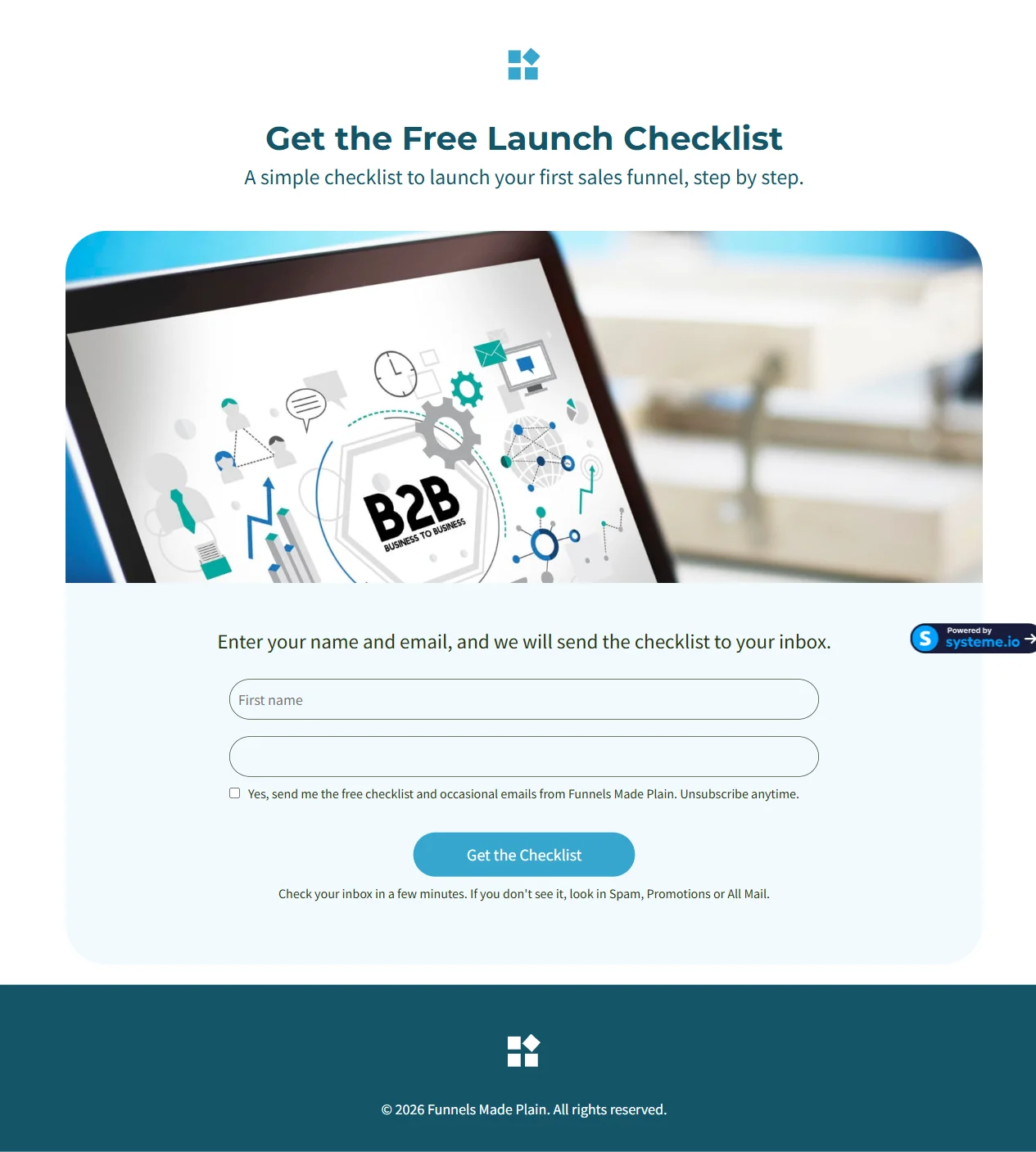
Tip: read your page on your phone. Most people will see it there first. On the free plan, pages also show a small "Powered by systeme.io" badge.
5Edit your thank-you page
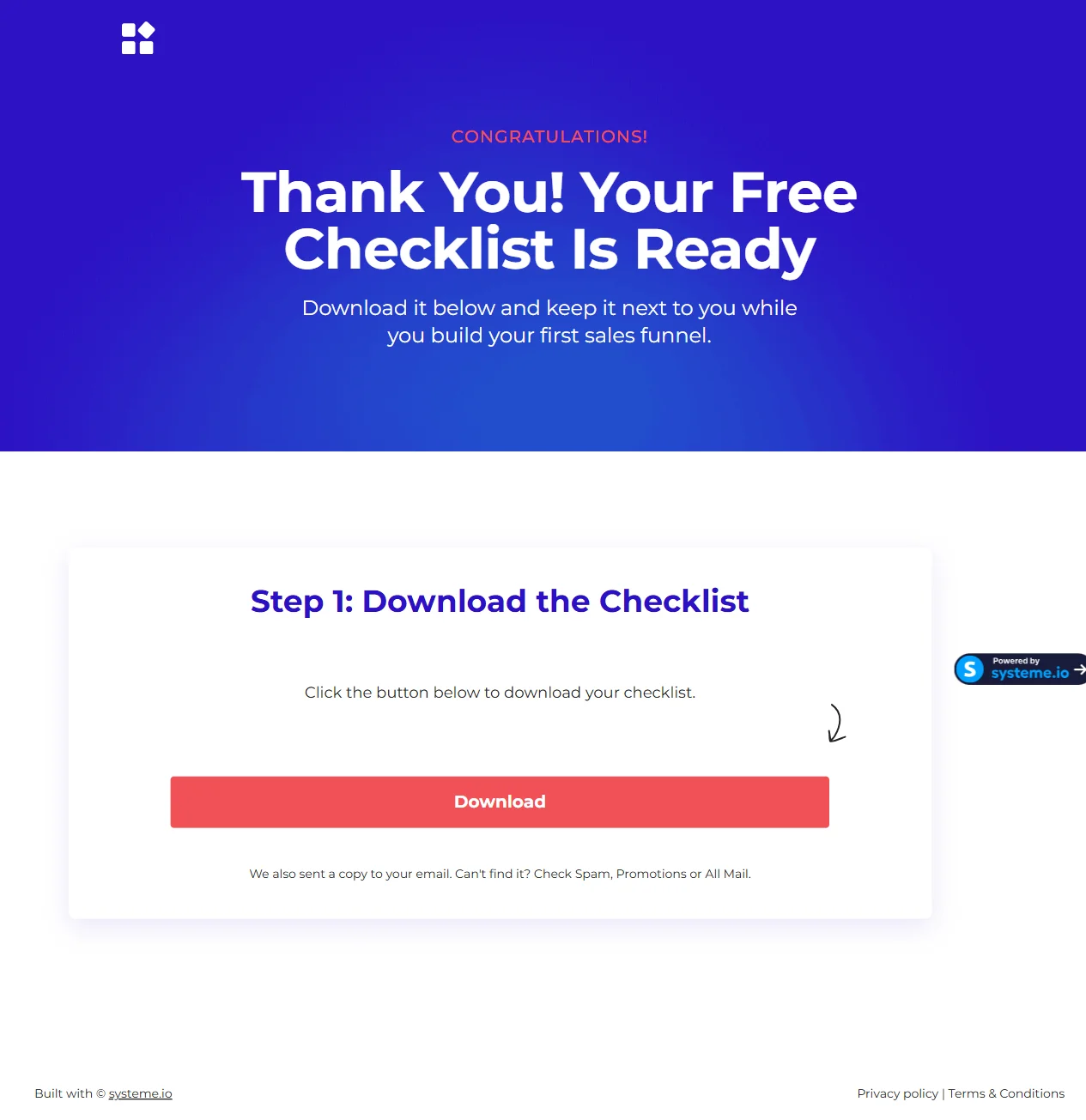
Click Thank You / Download Page in the steps list, choose a template, and click Edit page. Tell people exactly what happens next:
- "Your checklist is ready. Download it below."
- That a copy is on its way by email, and to check the spam or promotions folder if it doesn't arrive.
If your freebie is a file, you can link the page's button straight to it, so people get it even before the email arrives.
6Deliver your freebie by email
The free plan includes 1 automation rule, which is enough for this.
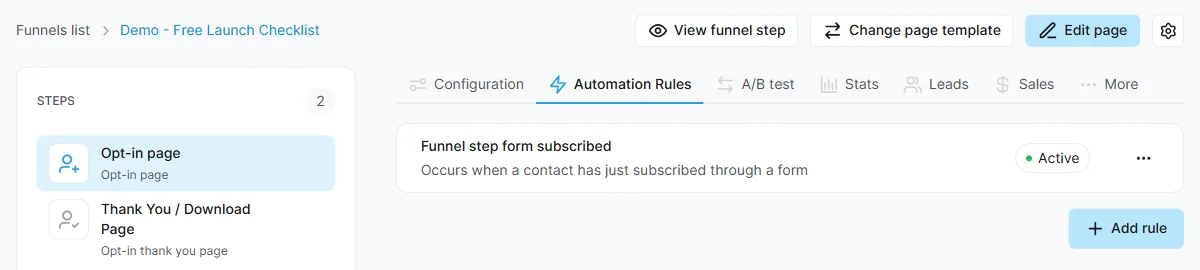
- Click Opt-in page in the steps list and open the Automation Rules tab.
- Click Add rule.
- For the trigger, choose Funnel step form subscribed ("Occurs when a contact has just subscribed through a form").
- For the action, choose Send email. The action only lets you pick an email that already exists, so use the + next to the email field to create one: fill in Subject, Sender name and Sender email, then write the message with a link to your freebie.
- Click Save rule. The rule now shows as Active.
The Sender email list only shows addresses you've already verified in systeme.io. On a new account it's empty: use Add and verify a new email to add yours first.
Want to make sure people really asked to join? systeme.io has a help article on setting up double opt-in. We didn't turn it on for this funnel.
7Test it yourself before sharing
- Open your opt-in page in a private browser window.
- Sign up with a second email address you own.
- Check that you land on the thank-you page and receive the freebie email.
- Delete the test contact afterward so it doesn't count toward your 2,000-contact limit.
We ran this test on our own funnel before linking to it: the signup led to the thank-you page and the freebie email arrived. Then we deleted the test contacts.
8Share your page
Copy the page link (the copy icon next to URL Path does it in one click) and put it where your audience already is: your social media bio, your email signature, or the end of your blog posts or videos.
Common beginner mistakes
- Asking for too much. Name and email are enough. Every extra field is one more reason to leave.
- A vague offer. "Join my newsletter" is not an offer. A specific checklist is.
- Skipping the test. A broken form wastes every visitor you send.
- Forgetting the legal basics. If you email people in the U.S., commercial emails must follow the CAN-SPAM Act, including a working unsubscribe link and your physical mailing address. See the FTC's CAN-SPAM guide.
What's next
Once people are joining your list, the next step is a short welcome sequence that introduces you and your offer.
Ready to build yours? Create your free systeme.io account (affiliate link) and follow the steps above.
Last updated: November 16, 2026. Prices and plan limits were checked on systeme.io's pricing page on that date. This is an independent site, not owned or endorsed by systeme.io. We earn commissions through its affiliate program, as explained in the disclosure at the top.